— Setup & Requirements —

What you need to go live.

QuizGames Live runs in any modern browser — but to pull TikTok chat into the quiz, you'll need our small connector running on your computer. Below are the four ways to host, ranked easiest to hardest.

⚠️
TikTok LIVE eligibility: Normally requires 1,000+ followers and 18+ (16+ in some regions, 18+ to receive gifts). TikTok's rules →
🤝
Optional bonus
Join Grafters Agency through QuizGames Live

QuizGames Live is an official TikTok agency manager under Grafters Agency. Joining through us is completely optional, but it unlocks some genuinely useful perks that solo creators don't get.

🚀
No 1,000-follower minimum Go LIVE on TikTok from day one — even with a brand-new account.
🛡️
Account protection Agency-managed accounts get faster support when things go wrong — wrongful bans, content strikes, login issues, gift disputes.
📈
Growth tips & tricks Access to playbooks, training, and 1-on-1 advice from agency coaches who do this full-time. Learn what's working on TikTok right now.
💷
Make money on the platform Guidance on monetisation: gifts, the Creator Rewards Program, brand partnerships, and how to convert viewers into income.

Ready to apply?

Two ways to apply to Grafters Creator Network — straight from this page, or by scanning the QR with the TikTok app.

Apply on TikTok →

Or scan the QR with your phone — open TikTok → Profile → Add friends → Scan
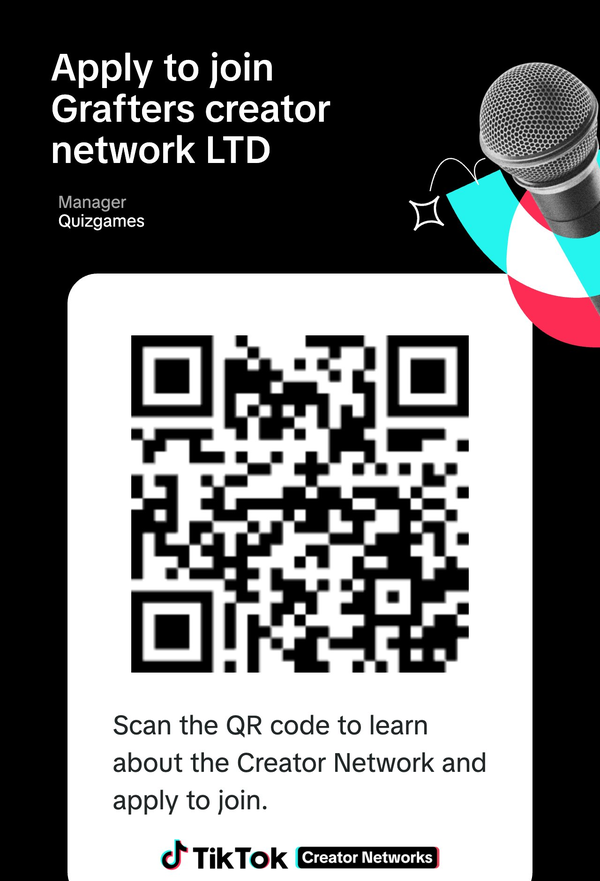
Scan to apply to Grafters Creator Network on TikTok

It's completely free. No contracts, no monthly fee, no cut of your earnings. If it's not for you, no problem — just request to leave the agency at any time and you keep your account. Interested but not sure? Drop us a note or ask in your dashboard once you've signed up.

How to host — easiest to hardest

Same QuizGames Live Connector, four different ways depending on the device you've got.

🖥️
Windows PC or laptop
QuizGames Live Connector for Windows
⭐ Easiest

The recommended setup. Install the free QuizGames Live Connector on Windows, sign in once, and the quiz connects to TikTok automatically every time you go live. Most stable, fewest moving parts.

The connector download link appears in your dashboard after you sign up.

✅ PROS

  • Most stable connection
  • Auto-reconnects if dropped
  • Best for long stream sessions

⚠️ NEEDS

  • Windows 10 or 11 (64-bit)
  • 8 GB RAM, modern Chrome/Edge/Firefox
  • ~150 MB free disk space
🍎
Mac (MacBook, iMac, Mac mini)
Coming soon — QuizGames Live Connect
⭐⭐ Medium

Our connector is Windows-only right now, so Mac hosting isn't possible today. We're building our own zero-install bridge — QuizGames Live Connect — that runs entirely in your browser tab. No downloads, no install, just sign in.

Tell us if you'd like to be notified when Connect launches.

✅ COMING WITH CONNECT

  • Zero install on Mac
  • Works on Intel and Apple Silicon
  • Same features as Windows setup

⚠️ FOR NOW

  • No working setup on Mac yet
  • Borrow a Windows PC, or wait for Connect
📱
Tablet (iPad or Android)
Coming with QuizGames Live Connect
⭐⭐⭐ Hard

Tablets can't run our Windows connector either, so tablet hosting waits for Connect. Once available, you'll be able to host from an iPad or Android tablet by signing in to QuizGames Live in the browser — no app install on the tablet itself.

✅ COMING WITH CONNECT

  • Host from any larger tablet
  • Portable — no PC needed
  • Touch-friendly quiz controls

⚠️ FOR NOW

  • No working setup yet
  • 10"+ tablet recommended when ready
📲
Phone-only (iPhone or Android)
Coming with QuizGames Live Connect — but tight
⭐⭐⭐⭐ Hardest

Possible once Connect launches, but a tight squeeze. You'd be juggling your TikTok LIVE broadcast, the chat, and the QuizGames Live dashboard all on one small screen. Most hosts find this awkward to operate live — we recommend a tablet or above if you've got the option.

If you do host phone-only, plan a simpler quiz format (fewer questions, longer rounds) to give yourself room.

✅ COMING WITH CONNECT

  • No extra kit needed
  • Host from anywhere with signal

⚠️ EXPECT TO JUGGLE

  • Constant app-switching while live
  • Plus / Pro Max / Ultra-size phones recommended

Detailed Windows PC specifications

Three setups depending on how serious you're getting. Minimum runs everything but expect occasional stutters with big audiences. Recommended is what we test against. Streamer setup is for hosts running TikTok LIVE Studio (or OBS Studio as a power-user alternative) alongside the quiz.

Component Minimum Recommended Streamer setup
OS Windows 10 (64-bit, 21H2+) Windows 11 (64-bit) Windows 11 (64-bit, latest)
Processor Intel i3 (8th gen+) / AMD Ryzen 3 (3000+) Intel i5 (10th gen+) / AMD Ryzen 5 (5000+) Intel i7 (11th gen+) / AMD Ryzen 7 (5800+)
RAM 8 GB DDR4 16 GB DDR4 32 GB DDR4 / DDR5
Storage 5 GB free, HDD acceptable 10 GB free, SSD recommended 20 GB free, NVMe SSD
Graphics Integrated graphics (Intel UHD 620+ / AMD Vega) Integrated or basic discrete GPU NVIDIA GTX 1660 / AMD RX 6600+
(hardware encoding helps both LIVE Studio and OBS)
Internet 10 Mbps down, 5 Mbps up 25 Mbps down, 10 Mbps up 50 Mbps down, 20 Mbps up
Wired Ethernet preferred
Display 1366×768 (laptop) 1920×1080 (Full HD) 1920×1080 main + secondary for LIVE Studio/chat
Browser Chrome / Edge / Firefox (last 2 versions) Latest Chrome or Edge Latest Chrome or Edge
Audio Built-in speakers / headphones USB headset with microphone Dedicated USB / XLR mic + audio interface
Webcam Built-in laptop camera (optional) 720p webcam (optional) 1080p webcam or DSLR with capture card

Other things worth knowing

  • Stable internet matters more than raw speed. A solid 25 Mbps connection beats a flaky 100 Mbps one. Wired Ethernet eliminates Wi-Fi drops mid-live.
  • Use TikTok LIVE Studio first. It's TikTok's own free broadcasting app (Windows) and the cleanest way to go live — logs in with your TikTok account, no stream key, natively shows gifts/follows/comments, and credits LIVE milestones. Download from tiktok.com/studio/download.
  • OBS Studio is a powerful alternative — with caveats. It's free (obsproject.com) and great for advanced overlays, capture cards, or multi-platform streaming. But TikTok gatekeeps stream keys for OBS — most regular accounts can't get RTMP access on their own. The reliable routes are joining a TikTok Creator Network (like Grafters), using plugins like StreamElements SE.Live, or running OBS Virtual Camera into TikTok LIVE Studio as a hybrid. Stream keys also expire every 2 hours, so you re-generate per session. Recommendation: start on LIVE Studio, move to OBS only when you outgrow it.
  • Close background apps. Discord, browser tabs you don't need, OneDrive sync, Windows updates — all eat CPU and bandwidth. Quit them before going live.
  • Disable sleep / screensaver. Windows can drop network connections when it thinks you're idle. Set power plan to "High performance" while streaming.
  • Use 5GHz Wi-Fi or wired if your router supports it. 2.4GHz gets crowded and unreliable for live streaming.
  • UK broadband sweet spot: Most fibre packages (Virgin, BT, Sky fibre) easily meet the Recommended spec. ADSL / older copper lines may struggle with large audiences.

Step-by-step setup (Windows)

First-time setup takes about 5 minutes. After that, going live is one click.

  1. Sign up for QuizGames Live

    Start your 7-day free trial. A card is needed to start, but nothing is charged until the trial ends — cancel before then and you pay nothing.

  2. Install the QuizGames Live Connector

    After signing up, your dashboard will show you the download link for the free Connector app for Windows. Install it and sign in with your TikTok account inside it.

  3. Check you can go LIVE on TikTok

    Open the TikTok app, tap +, and check that "LIVE" appears as an option. Not there yet? Either grow to 1,000 followers, OR ask us about joining via Grafters Agency where the minimum is waived.

  4. Build (or pick) a quiz

    Use our quiz builder, or grab a ready-made one from the public library. The AI assistant can generate questions on any topic in seconds.

  5. Connect your TikTok username

    In your QuizGames Live dashboard, paste your TikTok username (without the @) into the Connect panel. As long as the Connector is running, you'll see a green "Connected" status.

  6. Go live

    Start your TikTok LIVE broadcast, share your QuizGames Live screen via TikTok LIVE Studio (recommended) or OBS Studio, and run the quiz. Viewers type their answers in chat — scoring is automatic.

🚀 QuizGames Live Connect — coming soon

Our own zero-install bridge that runs inside your QuizGames Live tab. No downloads. No setup. Sign in, click "Go Live," done.

Connect unlocks hosting on Mac, iPad, Android tablet, iPhone, Android, Chromebook, and Linux — anything with a modern browser. Once stable, it becomes the default setup for all hosts including Windows users. The original Windows Connector will stay supported as a fallback option.

Get in touch if you'd like an update when Connect launches.

Ready to host your first live quiz?

7-day free trial. Nothing charged until it ends. Cancel any time.

Start Free Trial →